
Everything your fleet needs, from first login to daily use
Fleet managers: your 30-day trial and the fleet dashboard. Drivers: set up HeyNEXi in 15 minutes and do your inspections by voice. Use the switch below to see only your part.
Hey NEXi, start my pre-trip inspection
Your 30-day trial
Our goal is simple: your drivers completing inspections by voice, and you seeing them in your dashboard within the first week. You have a dedicated Fleet Success Representative for the whole trial. No hardware and no credit card needed to start.
Welcome
You receive this guide and a kickoff invite. Gather your vehicle list (unit number, VIN or plate) and 3-5 drivers to start with.
Kickoff call
30-45 minutes. We set up your account together, add vehicles, run the recall check, tour the dashboard and agree the rollout plan.
Pilot drivers
3-5 drivers install HeyNEXi and complete their first voice inspection. We send you a link to the first one.
Full rollout
You forward our announcement and the driver section of this page to everyone. We track activation and help with stragglers. Check-in on Day 7.
Value & decision
Check-in on Day 14, a Day-21 Value Review (inspections done, defects caught, hours saved), decision call by Day 30.
What we need from you
- Your vehicle list - unit number, VIN or plate
- Names and mobile numbers of your pilot drivers
- A backup contact person
- Ten minutes to forward our driver announcement
- Your top three trial goals, in your own words
Three tips from fleets who succeed
- Pick volunteers for the pilot. Enthusiasm spreads.
- Open your dashboard once a day in week one. It is where the value shows up.
- Tell drivers why. A timestamped, photographed inspection protects them too.
The fleet dashboard
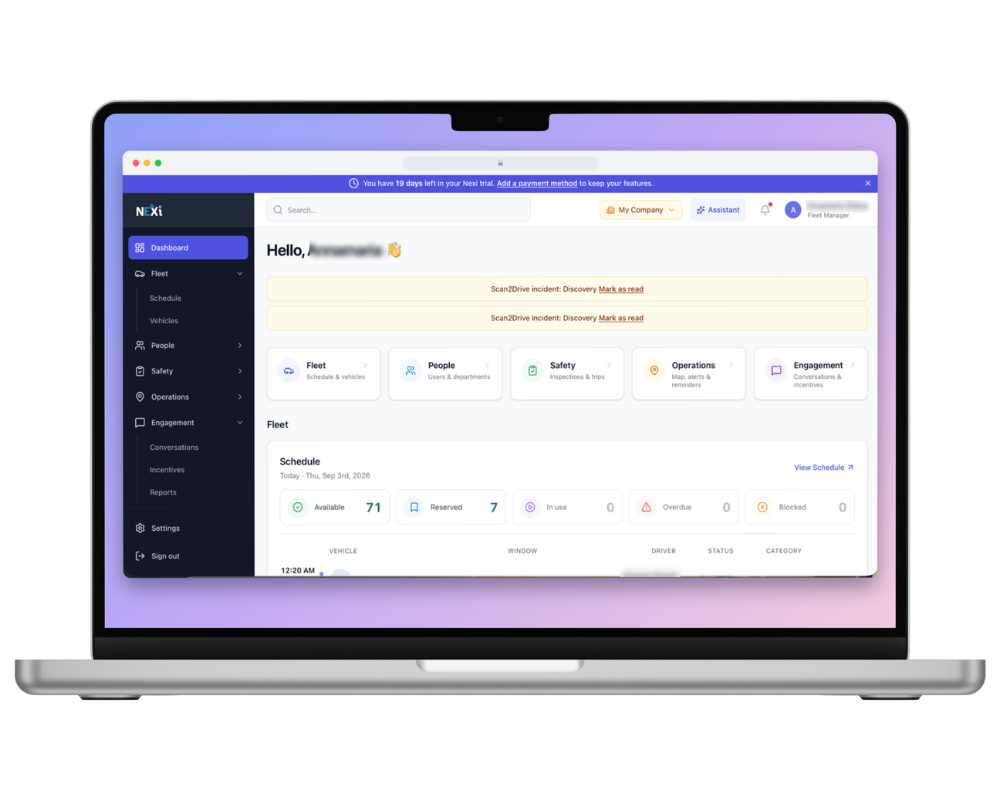
Your web view of everything drivers do in HeyNEXi. Open it in any browser - nothing to install. Your Fleet Success Representative sets up your account with you at kickoff and sends the login link. The menu on the left is organised into Fleet, People, Safety, Operations and Engagement; the bar at the top has search, the Assistant and your notifications.
Getting in
- Go to fleet.heynexi.com and sign in with your work email (or open the link in your welcome email).
- Set your password and time zone when prompted.
- Bookmark the page - you will use it daily in week one.
Where to find things
Dashboard home
Your day at a glance: alerts to mark as read (incidents, recalls), quick links to Fleet, People, Safety, Operations and Engagement, and today's Schedule - how many vehicles are available, reserved, in use, overdue or blocked.
Safety → Inspections
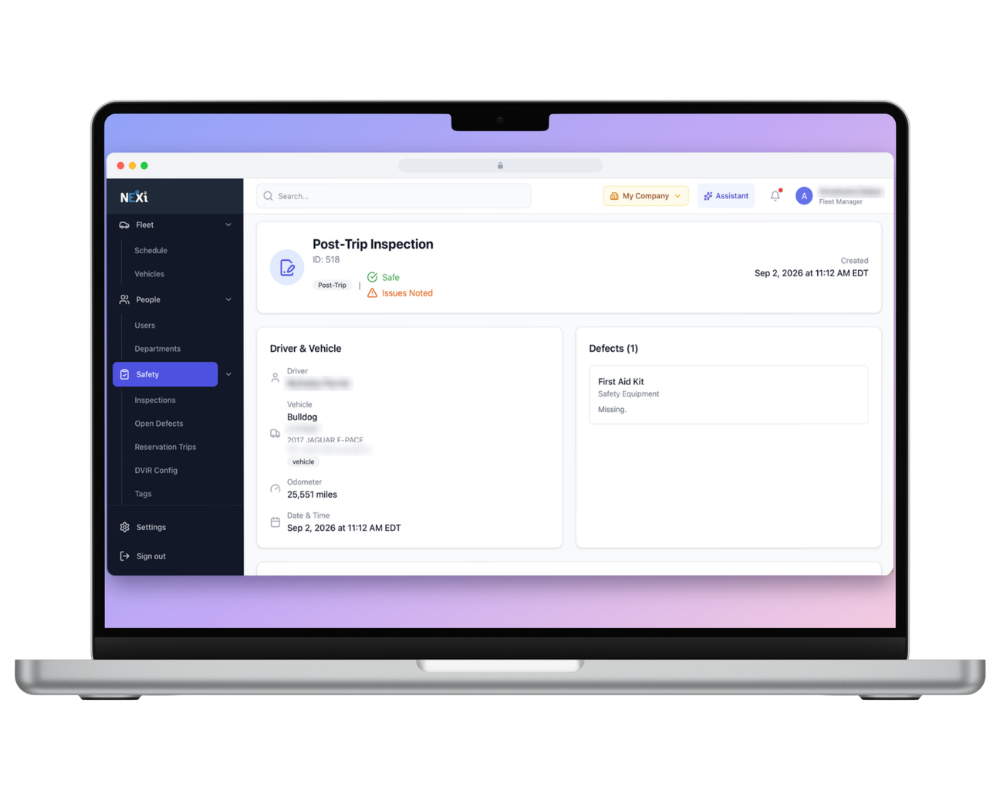
Every pre- and post-trip DVIR as drivers submit it, with driver, vehicle, odometer, time and result - marked Safe or Issues Noted. Open one to see each item and the defect photos.
Safety → Open Defects
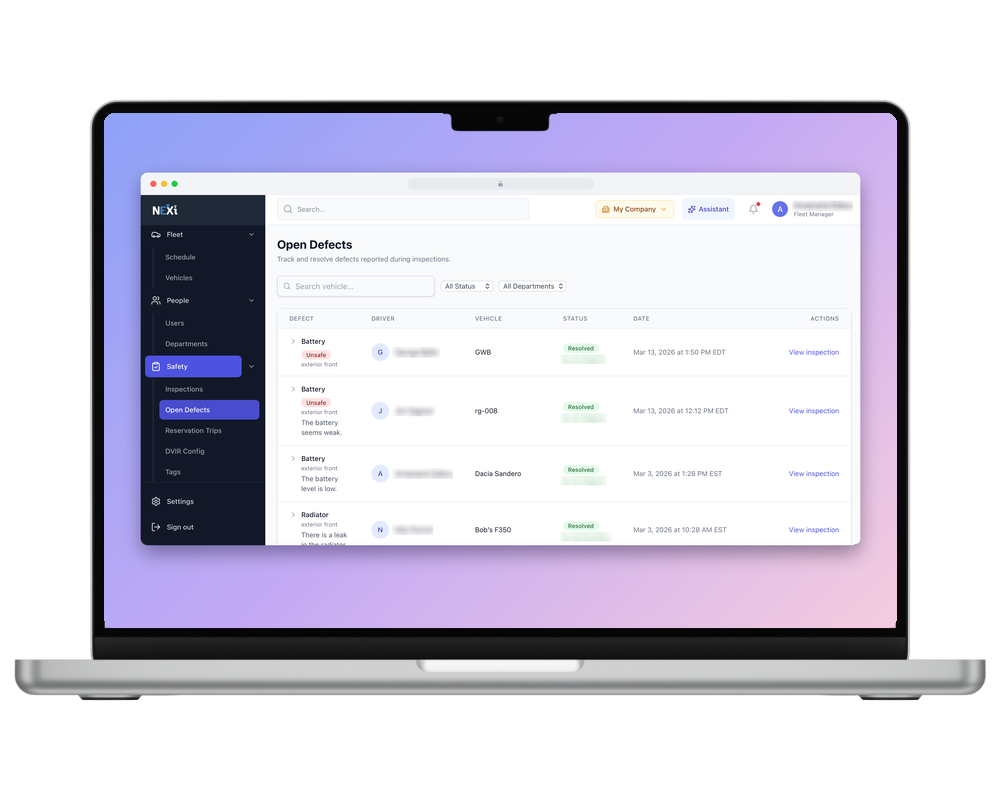
Everything a driver flagged, across the whole fleet, until it is resolved. Your maintenance to-do list.
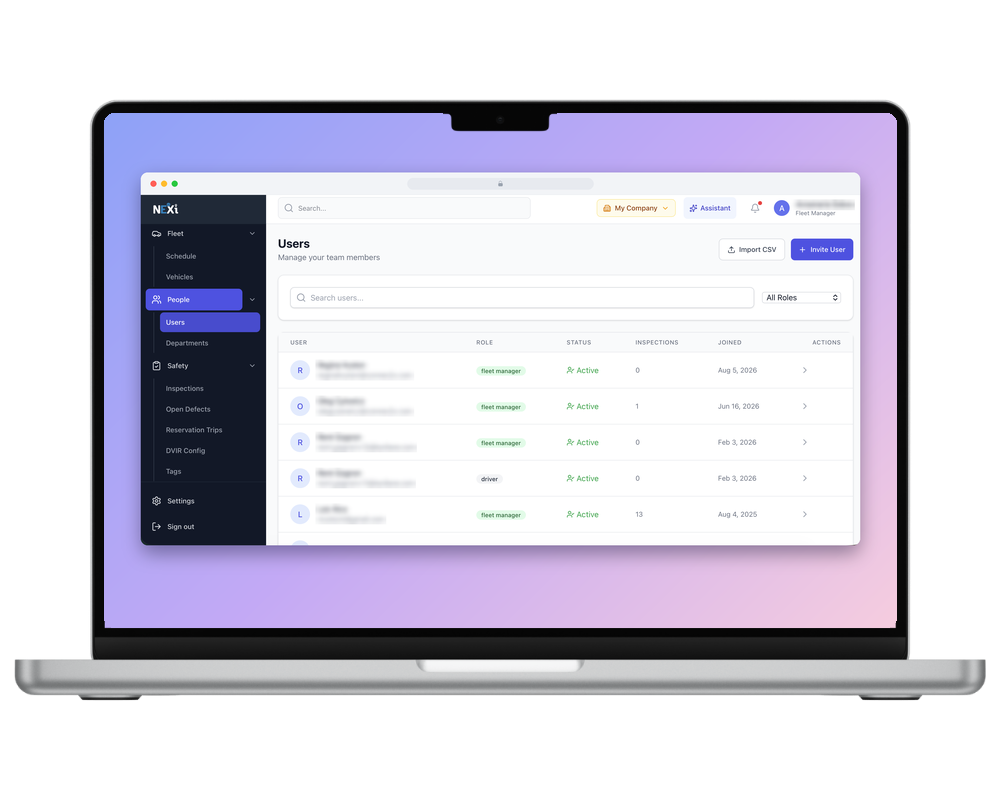
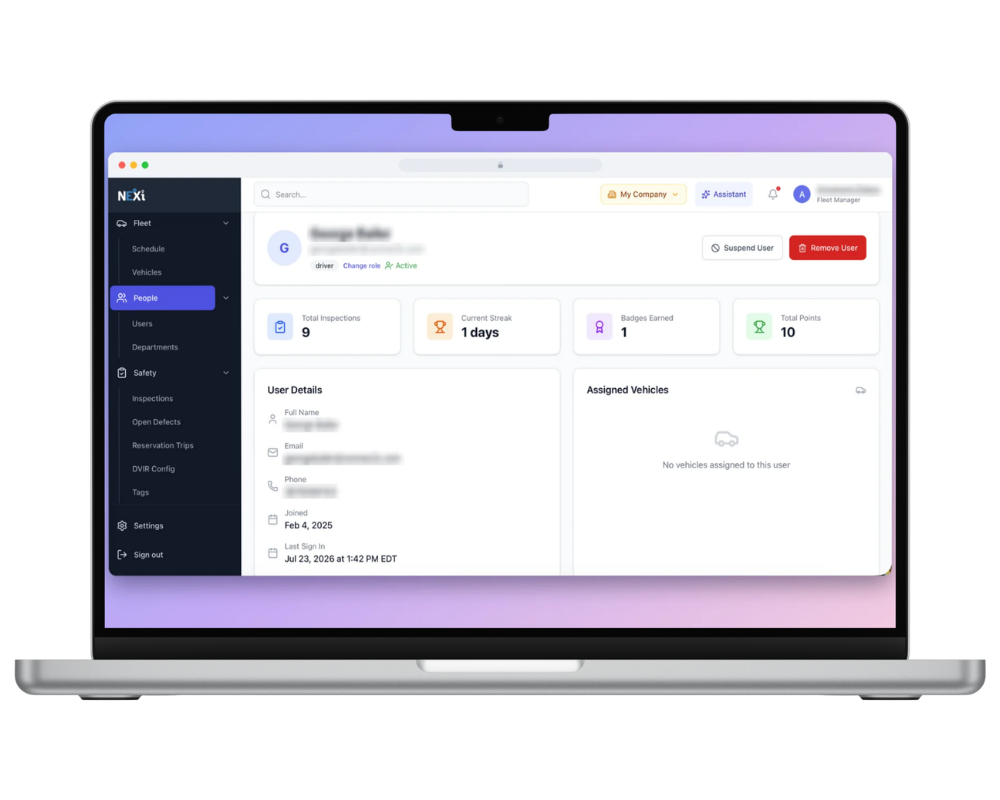
People → Users
Every driver and manager. A driver's record shows total inspections, current streak, badges and points, assigned vehicles and last sign-in - so you can see who is active and who still needs a nudge.
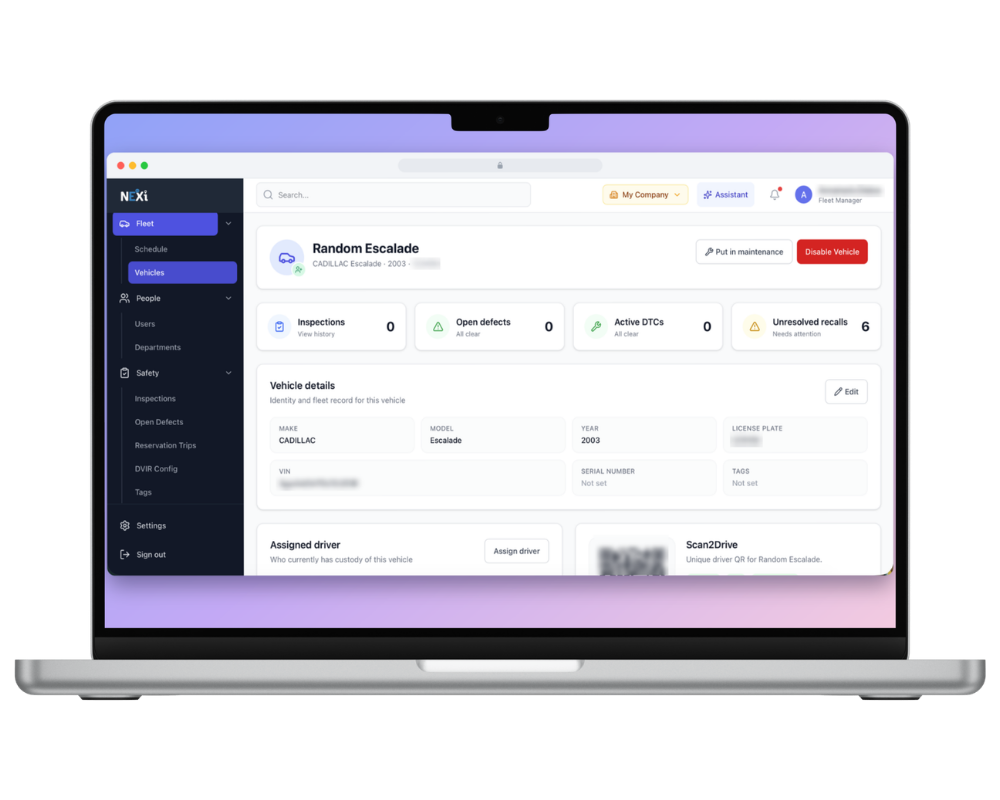
Fleet → Vehicles
Each vehicle's page shows inspections, open defects, active engine codes (DTCs) and unresolved recalls in one row, plus details, the assigned driver and its Scan2Drive QR code. Put a vehicle in maintenance or disable it from here.
Fleet → Schedule & Reservation Trips
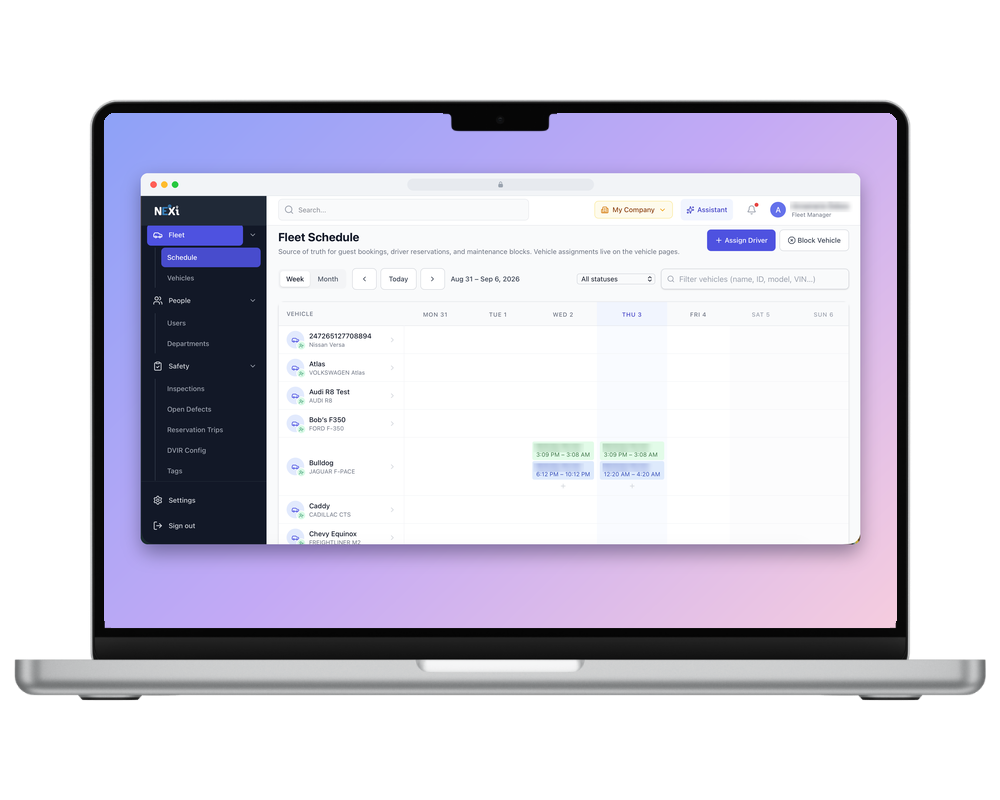
Who has which vehicle and when. Drivers can reserve a vehicle for a trip; you see availability, reservations and overdue returns.
Set the fleet up the way you work
Scan2Drive
Every vehicle has a unique QR code. A driver scans it in HeyNEXi to take custody of the vehicle, so inspections and trips land on the right unit. Print each code and stick it in the cab.
Safety → DVIR Config
Choose which items appear in the inspection checklist for your fleet - so drivers are asked about what matters for your vehicles, no more, no less. Set this before your pilot drivers start.
Engagement → Incentives
Drivers earn points, streaks and badges for completed inspections. Use it to recognise consistent drivers - it is one of the fastest ways to get adoption.
Engagement → Conversations
Message drivers from the dashboard, individually or as a group - handy for rollout reminders.
People → Departments & Safety → Tags
Group drivers by department and label vehicles with tags so larger fleets stay easy to filter.
Operations
Map, alerts and reminders for the fleet. Engagement → Reports gives you the numbers for your Day-21 review.
Adding vehicles and inviting drivers
Vehicles
- Go to Fleet → Vehicles and choose Add vehicle.
- Enter the VIN (or plate) and your unit number.
- Save. The NHTSA recall check runs automatically and appears under Unresolved recalls on the vehicle's page.
- Open the vehicle, print its Scan2Drive QR code and stick it in the cab.
Drivers
- Go to People → Users and choose Add user.
- Enter the driver's name and email or mobile number and give them the Driver role.
- They receive an invite that links their HeyNEXi app to your fleet. Until they accept it, their inspections will not reach your dashboard. Check who has activated under People → Users.
Set up HeyNEXi in 15 minutes
Do your vehicle inspections by voice - no paper, no typing. Your phone is all you need.
Download the app
Tap the badge for your phone. The app is called HeyNEXi, published by Connex2X.


On iPhone the app is not yet searchable in the App Store - use the badge above (or the link your manager sends you).
Join your fleet
Sign in, then use the invite link or code your manager sent you. This is what connects your inspections to your fleet.
Allow permissions
Microphone so NEXi hears you · Location for trips and incidents · Camera for defect photos · Notifications. Bluetooth only if you use the DriveLink scanner.
Test your voice
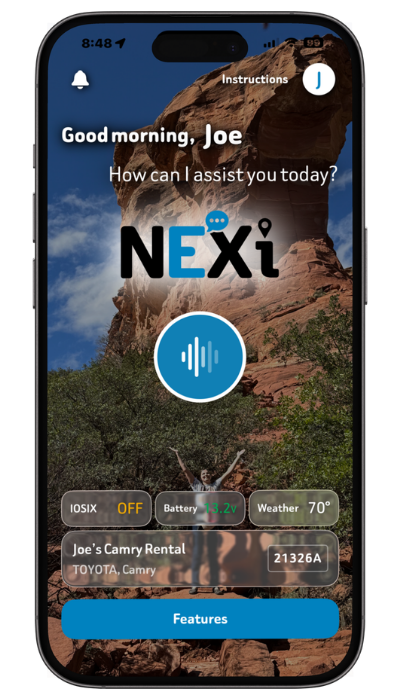
Say Hey NEXi, what can you do? Best in the cab with the door closed.
Scan your vehicle
Scan the Scan2Drive QR code in the cab to take the vehicle. If there is no code yet, choose the vehicle from your fleet's list.
Do your first inspection
Say Hey NEXi, start my pre-trip inspection and follow the prompts. Photograph anything that is not right, then submit.
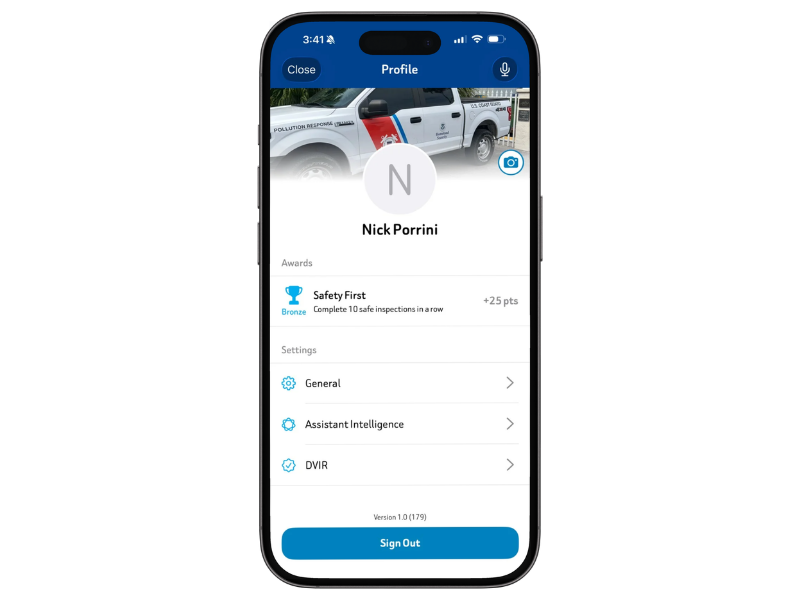
Pre-trip and post-trip inspections
A Driver Vehicle Inspection Report (DVIR) is your record that the vehicle was checked before and after your shift. NEXi walks you through it item by item and builds the report for you. It is timestamped, GPS-stamped and sent to your fleet dashboard instantly.
By voice
- Say Hey NEXi, start my pre-trip inspection (or “post-trip inspection”).
- NEXi confirms the vehicle you scanned. Say “yes”, or name a different unit.
- NEXi reads each item - brakes, lights, tires, mirrors, fluids and so on. Answer “OK” or “defect”.
- For a defect, describe it and say take photo with the camera pointed at the problem.
- NEXi reads a summary. Say submit, or “go back” to change an answer.
On screen
- Tap Inspections, then New inspection.
- Choose Pre-trip or Post-trip and confirm the vehicle.
- Tap OK or Defect on each item; add photos and notes where needed.
- Review the summary and tap Submit.
Past reports are under Inspections → History. Your history is your record too.
Reporting an incident on the road
A collision, a near miss, road damage, a breakdown - NEXi captures the evidence while you stay focused on staying safe. If you need emergency services, call them first. NEXi can wait.
Stop safely, then speak
Say Hey NEXi, report an incident
Describe what happened
In your own words. NEXi records your description.
Add pictures
Say take photo for each - damage, the scene, the other vehicle's plate, road conditions.
Submit
Time, GPS location and vehicle are attached automatically. Say submit - your fleet manager is notified immediately.
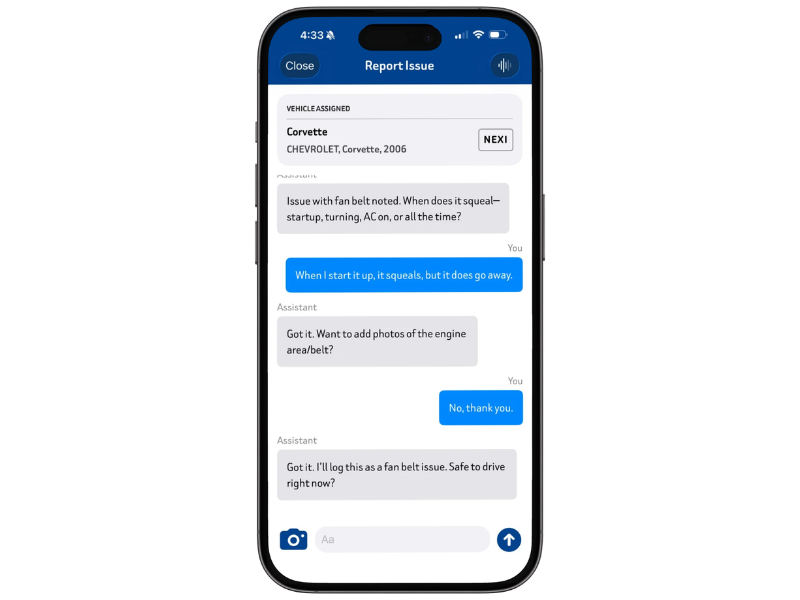
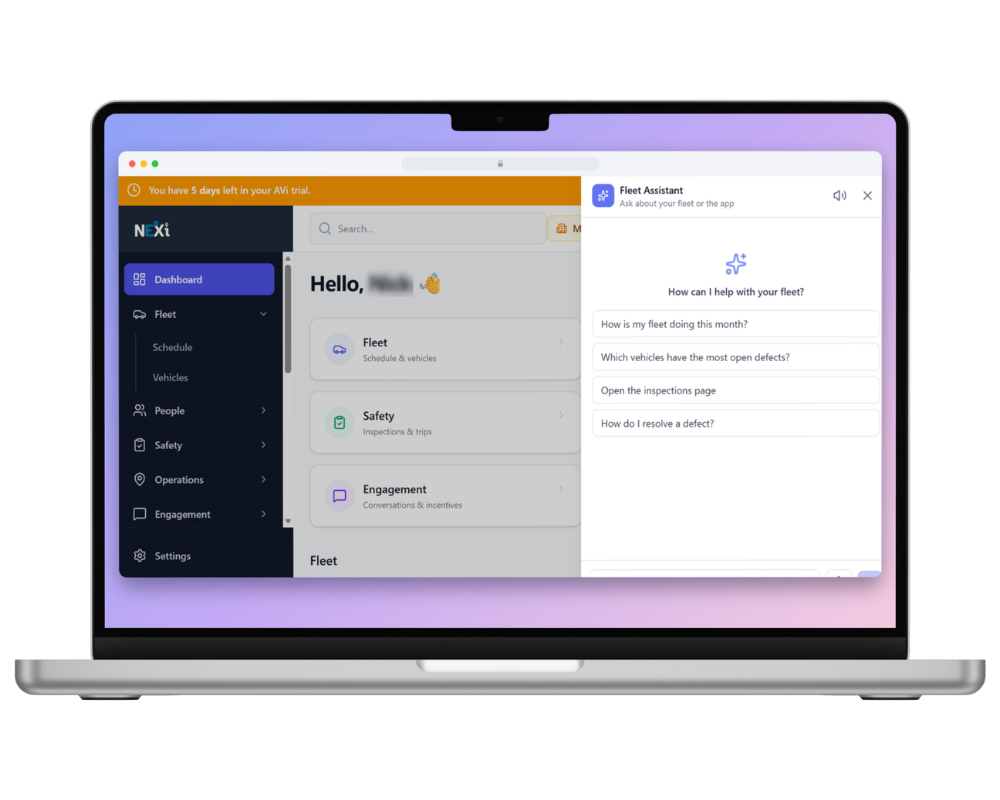
The Fleet Assistant and safety recalls
Just ask
NEXi answers out loud and shows the details on screen. You can also type in the Assistant tab.
- Hey NEXi, is there anything wrong with my truck?
- Hey NEXi, are there any recalls on this vehicle?
- Hey NEXi, when was my last inspection?
- Hey NEXi, how many miles did I drive today?
Recall checks run themselves
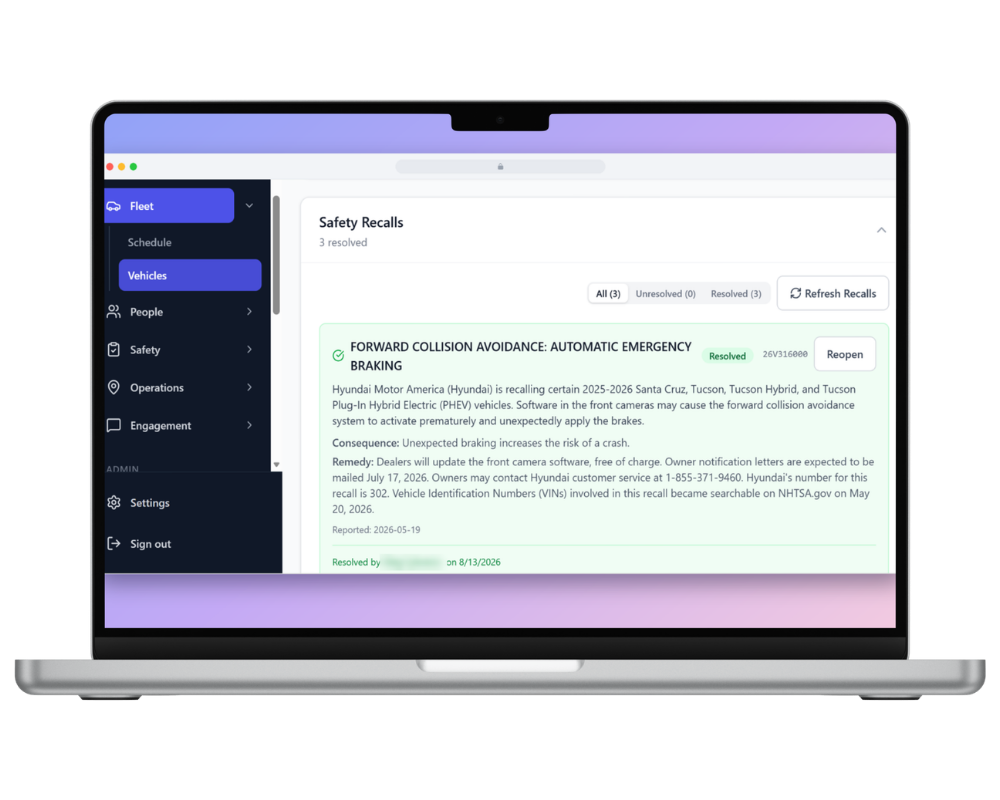
NEXi checks every vehicle against the NHTSA recall database automatically. If a recall applies, NEXi tells you when you open the app and lists it under Vehicle → Recalls. Your fleet manager sees the same alert, so you do not need to report it separately.
Vehicle health with NEXi DriveLink
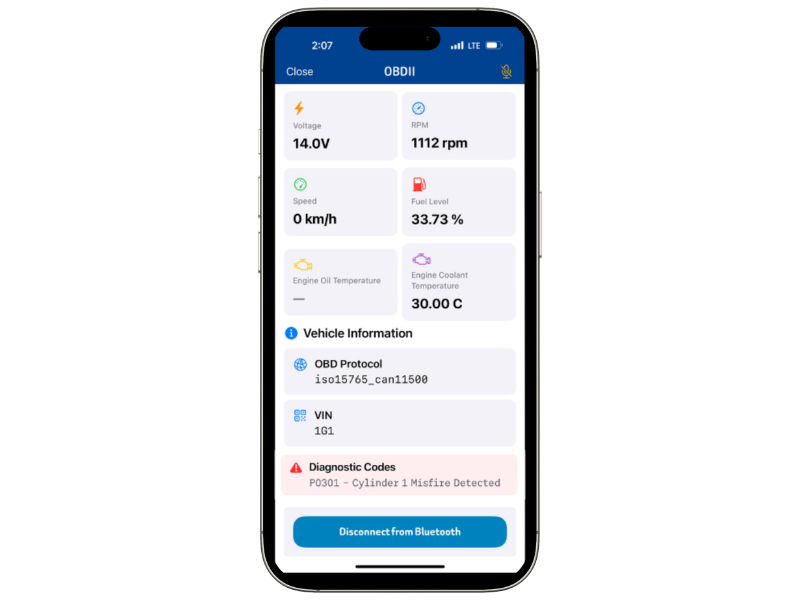
The DriveLink OBD2 scanner reads engine data directly from the vehicle. It is optional - everything else on this page works without it.
Pairing
- Find the OBD2 port - on most vehicles under the dashboard on the driver's side, near the steering column.
- Plug in DriveLink. A light shows it has power.
- Turn on Bluetooth on your phone.
- In HeyNEXi go to Vehicle → DriveLink → Pair and choose your unit.
Using it
Say Hey NEXi, check my engine for the current status. Trouble codes appear under Vehicle → Diagnostics in plain language, and warnings go to your fleet manager so maintenance can be scheduled before a breakdown.
Not connecting? Check Bluetooth is on, the unit's light is lit and you are within a few meters of the vehicle. Unplug and re-plug if needed.
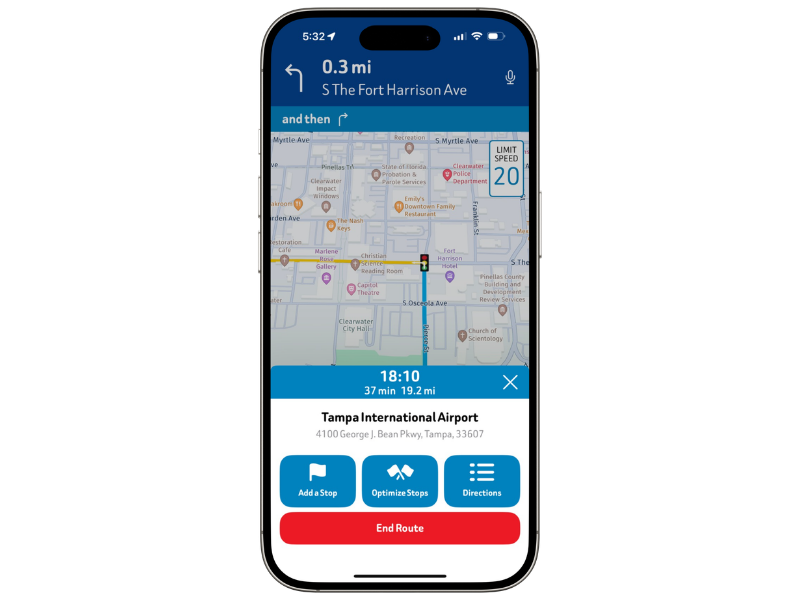
Navigation, green lights and your trips
Navigation and green-light guidance
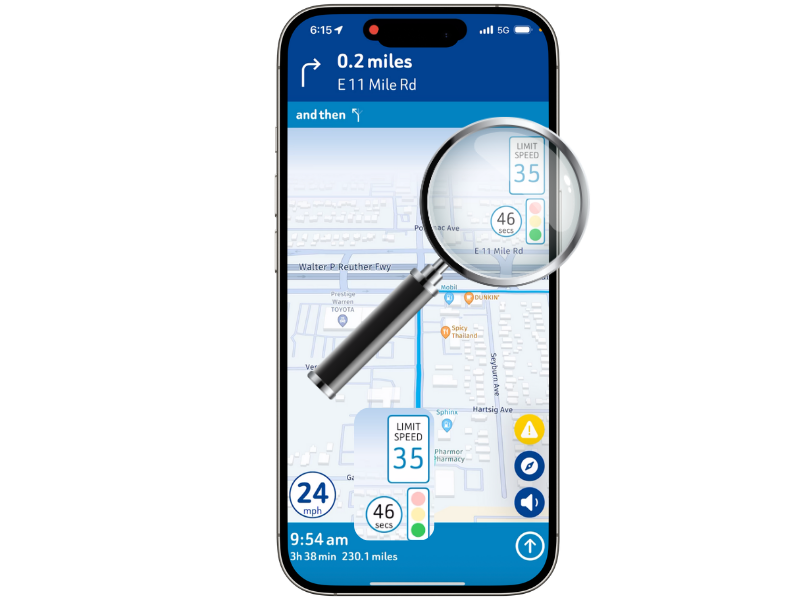
Where enabled by your fleet, say Hey NEXi, navigate to… an address or stop name, add a stop, or what's my next stop? When Green Light Optimization is active you will see a suggested speed near upcoming signals. It is advisory - always obey posted limits and road conditions.
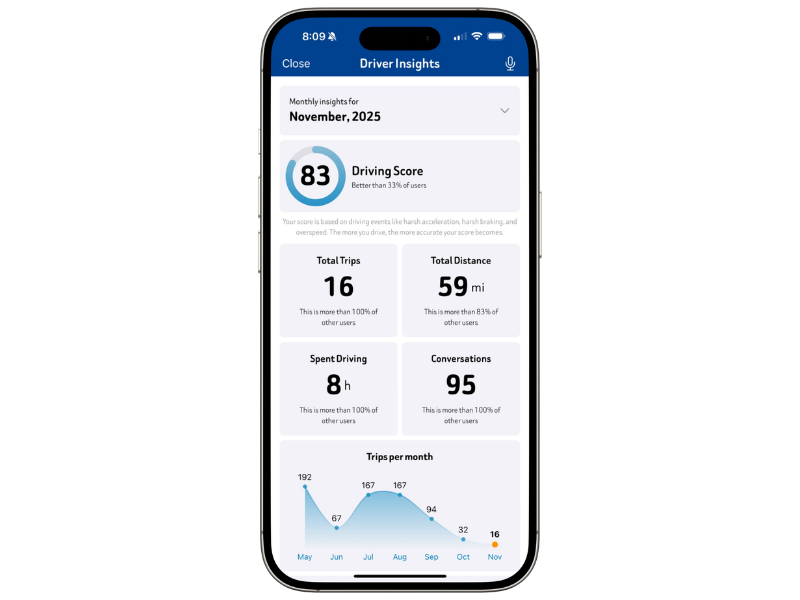
Your trips
Every trip is recorded automatically while the app is open. Tap Trips for today's routes, distance and events, or say Hey NEXi, show my trips this week
Everyday tips
- Keep your phone on a charger in the cab, as you would with any navigation app.
- In a noisy yard, do your inspection in the cab with the door closed.
- You can always say Hey NEXi, cancel or Hey NEXi, go back
- Every completed inspection earns points and keeps your streak going - badges show up in your profile.
- Update the app when your store prompts you - new features arrive regularly.
Questions people ask
I can't find HeyNEXi in the App Store.
On iPhone the app is not searchable yet. Use the “Download on the App Store” badge in the driver setup section of this page, or the direct link your manager sends you. On Android, search “HeyNEXi” in Google Play or use the badge on this page.
Do drivers need any hardware?
No. A phone is all it takes. DriveLink is optional and adds engine diagnostics.
Will the app drain the battery or use a lot of data?
It is designed for all-day use; keep the phone on a charger as you would with navigation. Voice and photos use modest data.
What does the manager see?
Inspections, incident reports and trip records for fleet vehicles. A timestamped, photographed DVIR protects the driver as much as the fleet.
Can we keep doing paper DVIRs during the trial?
Yes. Most fleets run both for a few days, then switch to NEXi only.
A driver's inspections don't show in the dashboard.
Their app is not linked to your fleet yet. Re-send the invite from People → Users and have them accept it in the app.
NEXi doesn't respond to “Hey NEXi”.
Check the microphone permission, turn the media volume up, and try in a quieter spot. Wait for the tone before you continue speaking.
What happens at the end of the trial?
Your Fleet Success Representative walks you through the results on Day 21 and the options on your decision call. If you continue, nothing changes for drivers. If not, you can export your inspection records before access ends.
Who to contact
Fleet managers
Your Fleet Success Representative: [Name] · [phone] · [email]. They are your single point of contact for the whole trial.
Drivers
Ask your manager first for anything about vehicles or routes. For app problems, email support@connex2x.com and tell us your fleet name and what you were trying to do.